Modern local image effects

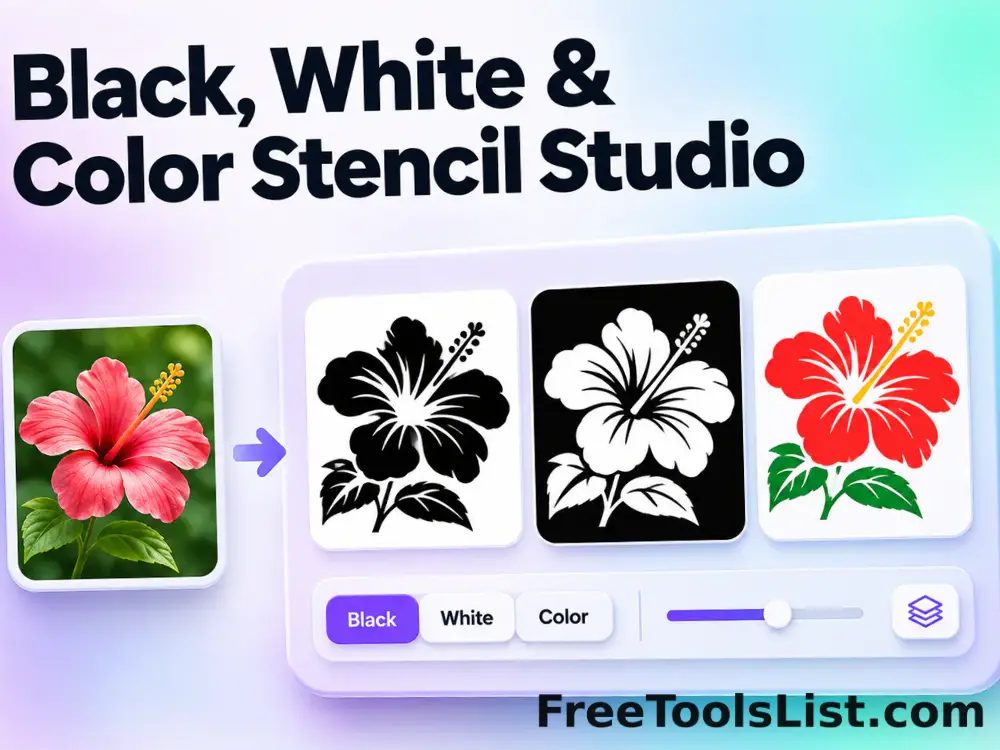
Black, White & Color Stencil Studio

Create a black-and-white threshold stencil or colored contour stencil with intensity, contour, smoothing, grain, inversion, brightness and color controls.

● Real canvas · Browser-local · Original safe

Black, White & Color Stencil Studio workspace

Apply the effect, inspect the actual canvas and save only after the output looks right.

Local · no external uploads

Loading the effect workspace…

Quick Tool Overview

Photo Stencil Maker with reviewable output.

Use Black, White & Color Stencil Studio to convert a photograph into a bold cutout-style stencil or a customizable colored contour illustration for printing, crafts and graphic design.

The browser analyzes luminance and Sobel contours, then builds either a softened binary stencil mask or an edge-driven colored mask between the selected contour and background colors.

LIVECanvas preview
LOCALPrivate processing
STENCILFocused effect
0Accounts needed
Review before saving. Stencil conversion intentionally removes tonal detail. Fine hair, thin type and low-contrast edges may disappear, so adjust intensity and smoothing while watching the live canvas.
About the Tool

What Black, White & Color Stencil Studio does.

Primary purpose

Use this page to convert a photograph into a bold cutout-style stencil or a customizable colored contour illustration for printing, crafts and graphic design.

Transparent method

The browser analyzes luminance and Sobel contours, then builds either a softened binary stencil mask or an edge-driven colored mask between the selected contour and background colors.

Actual output preview

The preview is drawn from the processed pixel result and includes an interactive comparison before export.

Private local workflow

Source pixels stay in this browser tab and are not sent to an external effect-processing API.

Original-safe export

The source is only read. Every effect result is encoded as a separate PNG, JPEG or WebP download.

Important limitation

Stencil conversion intentionally removes tonal detail. Fine hair, thin type and low-contrast edges may disappear, so adjust intensity and smoothing while watching the live canvas.
Key Features

A modern effect workspace built for inspection.

◫

Real live canvas

Review the processed pixels before the save button becomes available.

↔

Before and after

Drag the comparison slider to inspect details, gradients and edges.

⌂

Local processing

The effect runs in this tab without a remote upload queue.

↓

Flexible export

Save the reviewed result as PNG, JPEG or WebP with quality control.

How to Use Black, White & Color Stencil Studio

Apply and review the effect in six detailed steps.

Choose or load an image

Select a local browser-readable image or load the demonstration. The source file remains unchanged.

Step 1: Keep the untouched source until the result is verified.

Set the effect controls

Adjust stencil mode, black intensity or automatic intensity, contour size and fusion, smoothing, grain, contour and background colors, brightness, inversion, output format and quality. Start with moderate settings so the comparison remains easy to judge.

Step 2: Keep the untouched source until the result is verified.

Render the live canvas

Click Apply and wait for the actual processed pixels to appear. The save button stays disabled until encoding succeeds.

Step 3: Keep the untouched source until the result is verified.

Compare before and after

Drag the comparison slider across detailed and flat parts of the image to see exactly where the effect changes pixels.

Step 4: Inspect both fine detail and broad tonal areas.

Review measurements

Check output dimensions, encoded size, format and operation summary. Stencil conversion intentionally removes tonal detail. Fine hair, thin type and low-contrast edges may disappear, so adjust intensity and smoothing while watching the live canvas.
Step 5: Keep the untouched source until the result is verified.

Save the reviewed copy

Download the new image only after the canvas matches the intended look. Keep the original available for future edits.

Step 6: Keep the untouched source until the result is verified.

Ready to apply the effect?

Preview the complete result before saving.

No external upload queue, account, watermark or source overwrite.

Open Photo Stencil Maker →

Frequently Asked Questions

Popular photo stencil maker questions.

The browser analyzes luminance and Sobel contours, then builds either a softened binary stencil mask or an edge-driven colored mask between the selected contour and background colors.

No. Image decoding, effect processing, canvas comparison and encoding happen in the current browser tab on localhost.

Yes. The page shows the actual processed canvas, output dimensions, encoded size and a draggable before-and-after comparison before download.

No. The source is read only and the effect is exported as a separate file with a descriptive filename.

Begin with the defaults, inspect the canvas, and change one major control at a time. Moderate settings usually retain more useful detail.

Image editors may use different kernels, color spaces, edge handling and encoders. This page reports its method and displays the exact local result.

Keep exploring

Similar Tools

Continue with related free tools selected from this category and the wider directory.

20 tools
Black & White Dithering Studio tool previewBWImages

Black & White Dithering Studio

Convert a photo to one-bit black and white with Floyd–Steinberg, ordered or threshold methods plus balance, contrast, brightness and blur controls.

Auto Contrast Image tool previewACImages

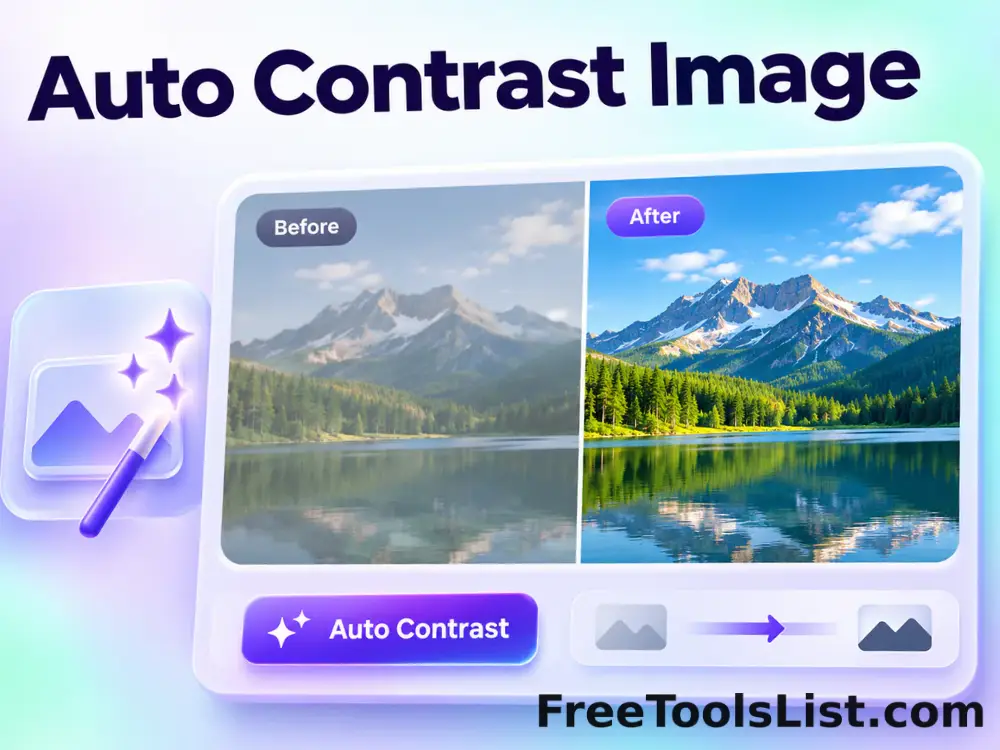
Auto Contrast Image

Automatically detect useful black and white points, expand image contrast and preview the corrected photograph on a live before-and-after canvas.

Automatic Color Balance tool previewACImages

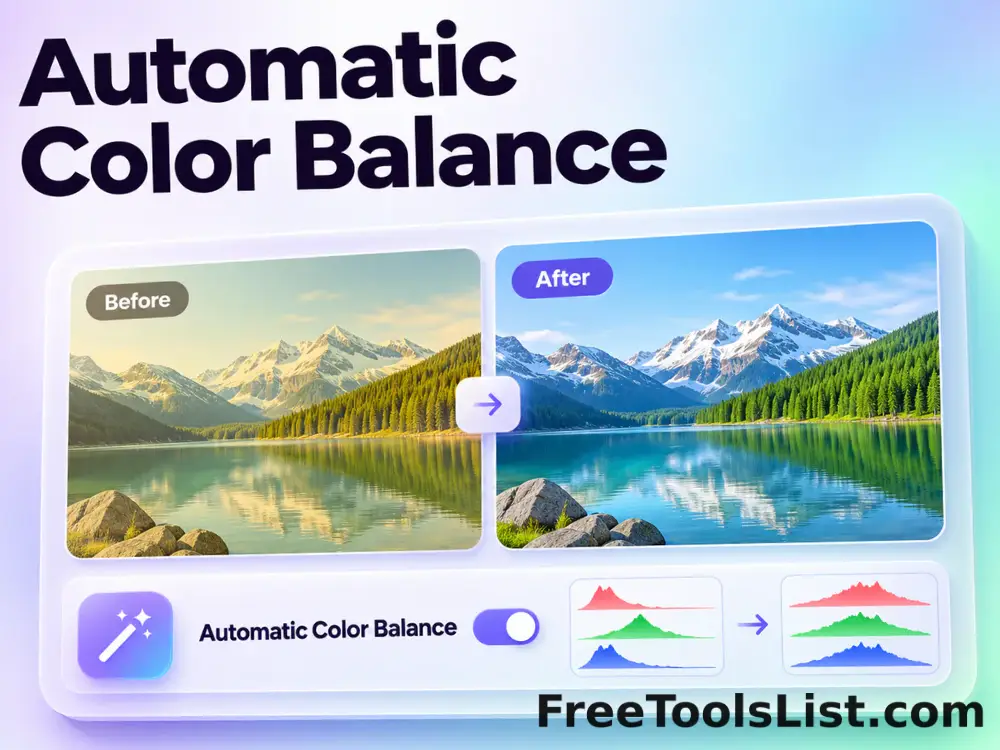
Automatic Color Balance

Automatically rebalance red, green and blue channel averages, preserve perceived brightness and preview the white-balance correction locally.

Background Blur & Color Studio tool previewBBImages

Background Blur & Color Studio

Keep a chosen subject region sharp while blurring or recoloring the surrounding background, with movable focus controls and a live canvas preview.

Bokeh & Blurred Circles Studio tool previewBBImages

Bokeh & Blurred Circles Studio

Overlay luminous circles, rings, hexagons, triangles or stars, or rebuild a photo from blurred color circles with seed, count, size, blur and color controls.

Bulk Clip Image Levels tool previewBCImages

Bulk Clip Image Levels

Process multiple images locally to set black and white clipping points for tonal cleanup, review every result, and download the completed batch as a ZIP.

Bulk Threshold Image tool previewBTImages

Bulk Threshold Image

Process multiple images locally to separate pixels into black and white at a chosen luminance level, review every result, and download the completed batch as a ZIP.

Clip Image Levels tool previewCIImages

Clip Image Levels

Clip Image Levels lets you set black and white clipping points for tonal cleanup locally in your browser, compare the result, and download a ready-to-use file.

Color Tone Filter Studio tool previewCTImages

Color Tone Filter Studio

Apply a single-color filter, matte shade or luminance-based monotone treatment with color, intensity, saturation and brightness controls.

Dominant Color Frame Studio tool previewDCImages

Dominant Color Frame Studio

Build a striped photo border from colors sampled from the image with independent side widths, palette size, blur, rotation and saturation controls.

Dot, Shape & Domino Mosaic Studio tool previewDSImages

Dot, Shape & Domino Mosaic Studio

Rebuild a photo from dots, squares, hearts or domino tiles with object size, luminance scaling, color mode, inversion and antialias controls.

Geometric Pattern Overlay Studio tool previewGPImages

Geometric Pattern Overlay Studio

Overlay a chessboard, randomized colored tile grid or scattered squares with size, grid, count, color, transparency and repeatable-seed controls.

Image Annotation & Signature Studio tool previewIAImages

Image Annotation & Signature Studio

Draw, write or sign directly on an image with adjustable brush color, thickness, undo and clear controls, while reviewing every stroke on the canvas before saving.

Image Color Intelligence & Palette Studio tool previewICImages

Image Color Intelligence & Palette Studio

Calculate an image average color, extract a distinct palette, inspect HEX, RGB, HSL and CMYK values, sample pixels and preview polished palette layouts before saving.

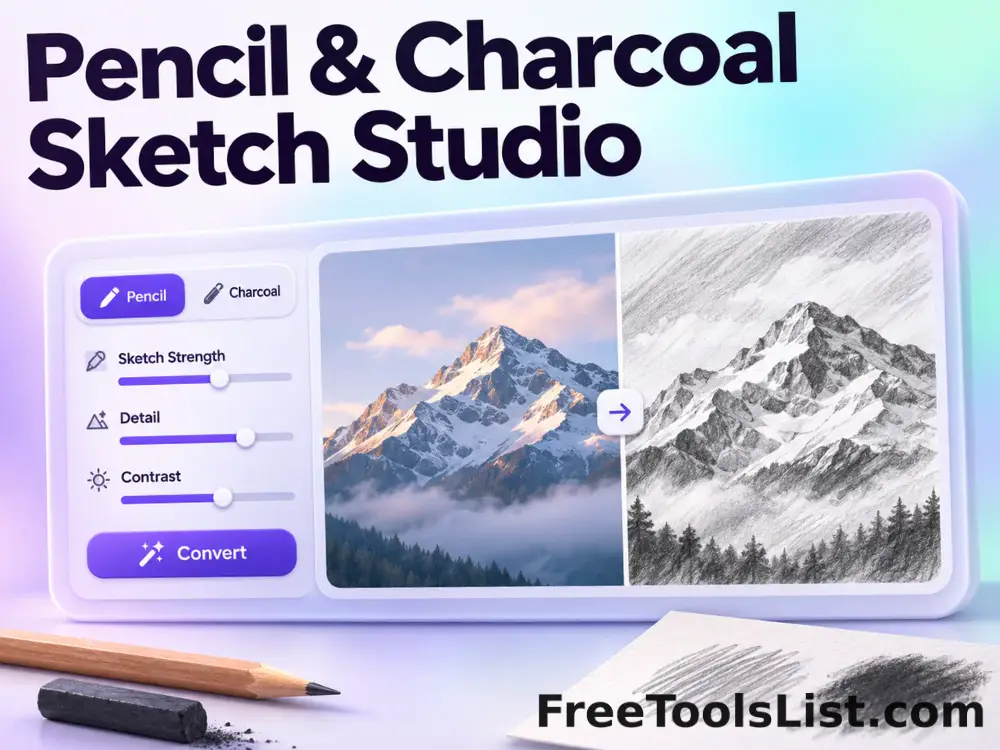
Pencil & Charcoal Sketch Studio tool previewPCImages

Pencil & Charcoal Sketch Studio

Transform a photo into graphite pencil, colored-pencil or charcoal artwork with edge strength, hardness, color count, brightness and contrast controls.

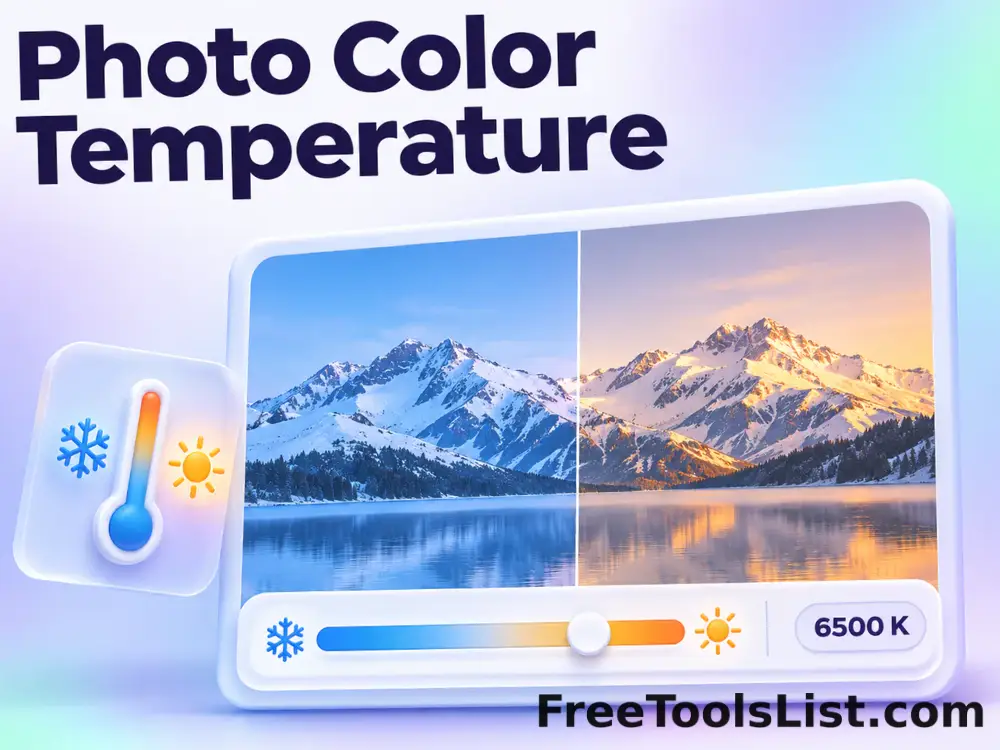
Photo Color Temperature tool previewPCImages

Photo Color Temperature

Warm or cool a photograph, correct green–magenta tint and optionally run automatic white balance before the manual adjustment.

Sticker Maker tool previewSMImages

Sticker Maker

Turn a transparent photo or text into a sticker with configurable white or colored outline, padding and caption, then preview and download a transparent WebP or PNG.

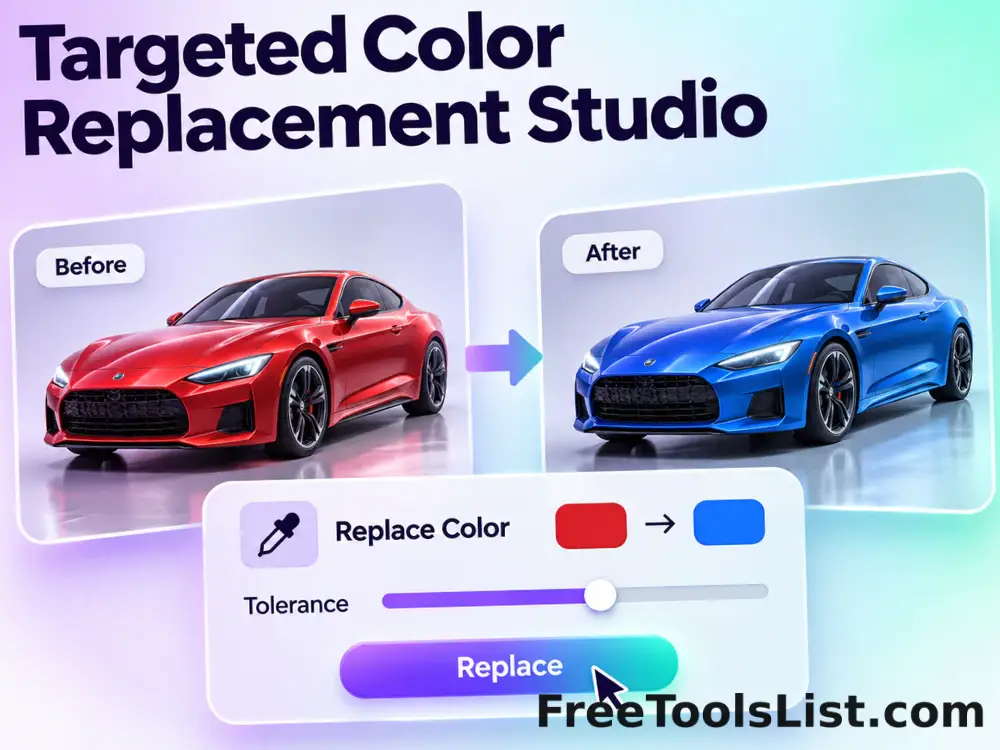
Targeted Color Replacement Studio tool previewTCImages

Targeted Color Replacement Studio

Replace a selected image color with another hue using adjustable matching intensity, transition smoothing, color gain and optional source-lightness preservation.

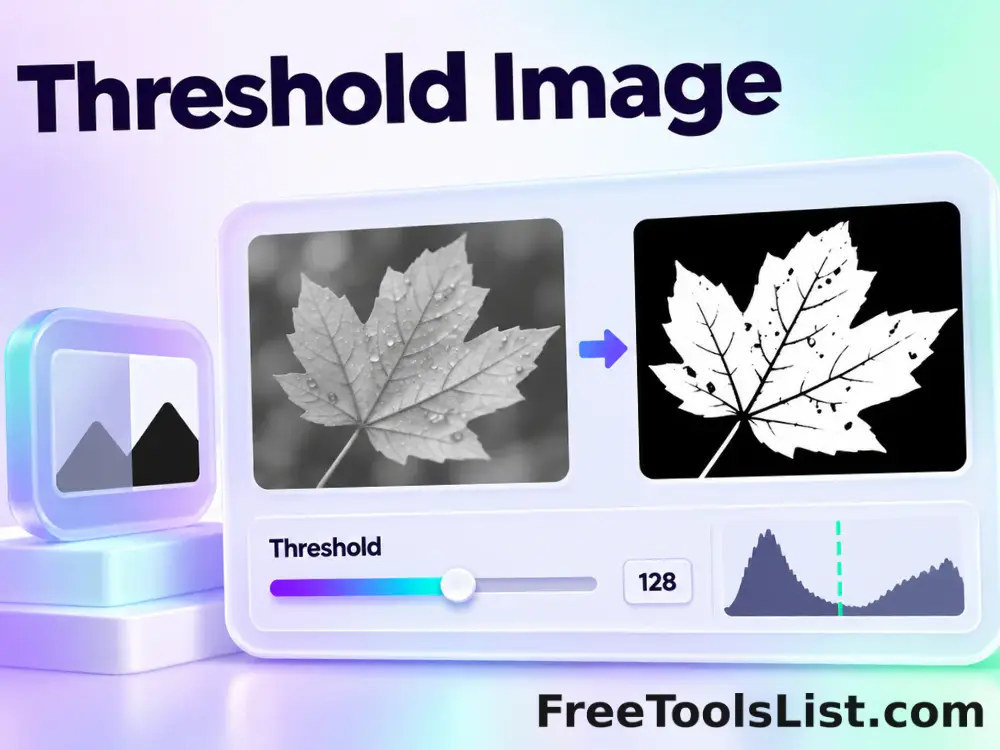
Threshold Image tool previewTIImages

Threshold Image

Threshold Image lets you separate pixels into black and white at a chosen luminance level locally in your browser, compare the result, and download a ready-to-use file.

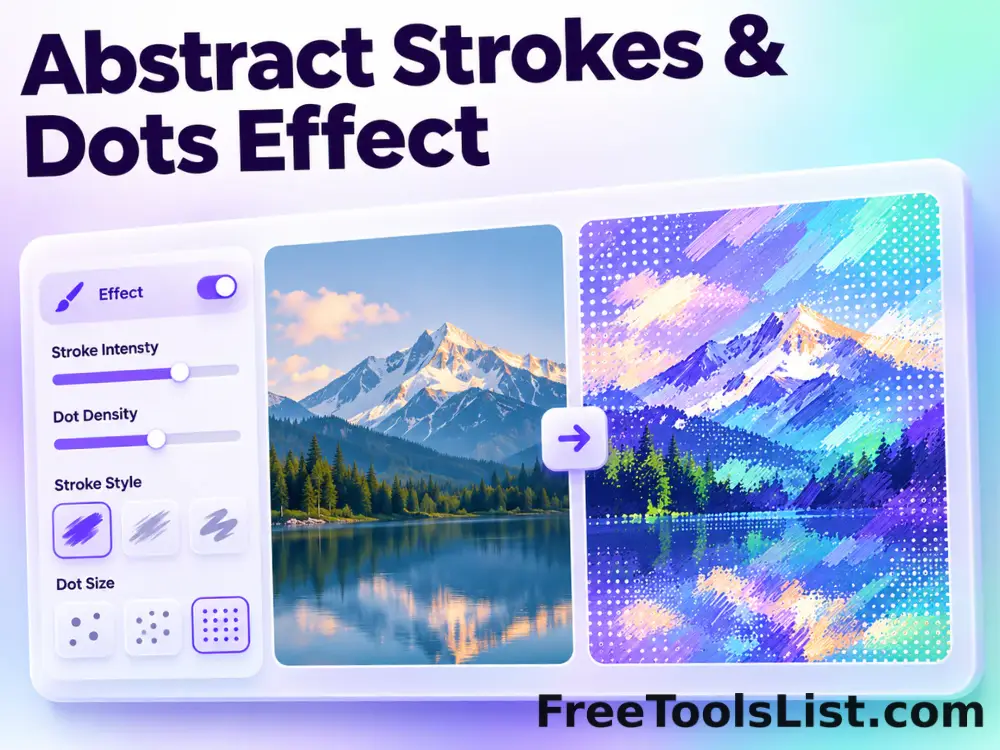
Abstract Strokes & Dots Effect tool previewASImages

Abstract Strokes & Dots Effect

Rebuild a photo as an abstract composition of sampled color strokes and dots with intensity, density, smoothing, color smoothing and a repeatable seed.

PublishedUpdated