Modern local image effects

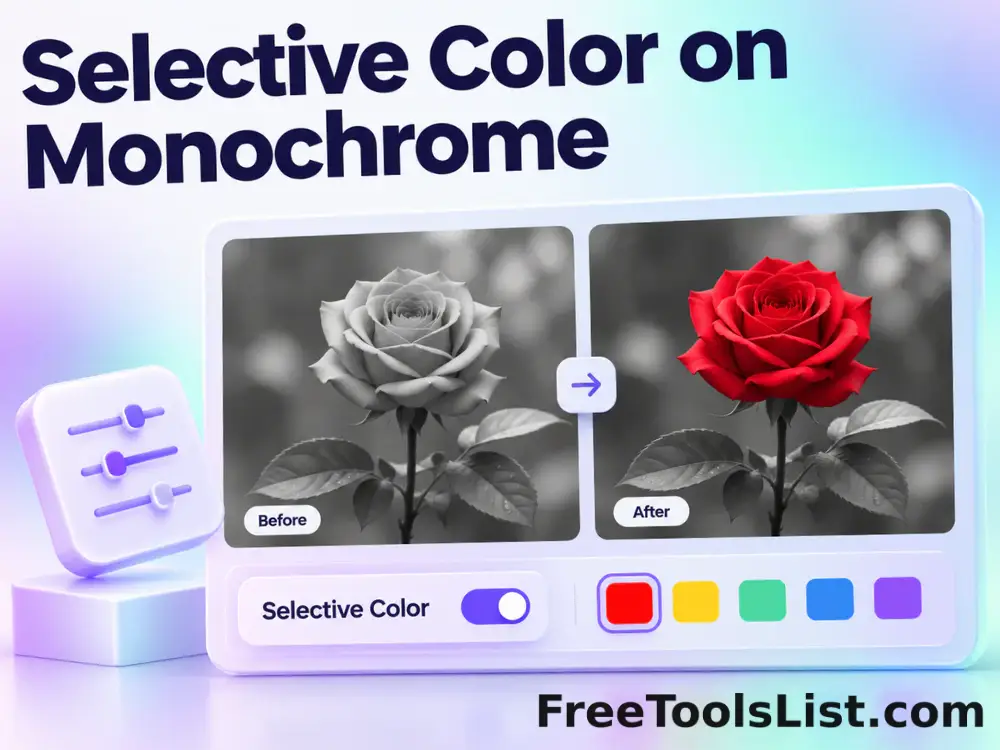
Selective Color on Monochrome

Preserve one chosen color while converting the remaining image toward grayscale, sepia or soft desaturation with tolerance, intensity and edge softness controls.

● Real canvas · Browser-local · Original safe

Selective Color on Monochrome workspace

Apply the effect, inspect the actual canvas and save only after the output looks right.

Local · no external uploads

Loading the effect workspace…

Quick Tool Overview

Selective Color with reviewable output.

Use Selective Color on Monochrome to isolate a subject color against a restrained background for product, flower, fashion and editorial images.

Each pixel is compared with the selected target color, then a softened distance mask blends matching pixels with the original and converts the remaining background to the chosen tonal style.

LIVECanvas preview
LOCALPrivate processing
COLORFocused effect
0Accounts needed
Review before saving. Lighting and shadows can shift the same object across several colors. Increase tolerance gradually and inspect boundary halos around the preserved subject.
About the Tool

What Selective Color on Monochrome does.

Primary purpose

Use this page to isolate a subject color against a restrained background for product, flower, fashion and editorial images.

Transparent method

Each pixel is compared with the selected target color, then a softened distance mask blends matching pixels with the original and converts the remaining background to the chosen tonal style.

Actual output preview

The preview is drawn from the processed pixel result and includes an interactive comparison before export.

Private local workflow

Source pixels stay in this browser tab and are not sent to an external effect-processing API.

Original-safe export

The source is only read. Every effect result is encoded as a separate PNG, JPEG or WebP download.

Important limitation

Lighting and shadows can shift the same object across several colors. Increase tolerance gradually and inspect boundary halos around the preserved subject.

Key Features

A modern effect workspace built for inspection.

◫

Real live canvas

Review the processed pixels before the save button becomes available.

↔

Before and after

Drag the comparison slider to inspect details, gradients and edges.

⌂

Local processing

The effect runs in this tab without a remote upload queue.

↓

Flexible export

Save the reviewed result as PNG, JPEG or WebP with quality control.

How to Use Selective Color on Monochrome

Apply and review the effect in six detailed steps.

Choose or load an image

Select a local browser-readable image or load the demonstration. The source file remains unchanged.

Step 1: Keep the untouched source until the result is verified.

Set the effect controls

Adjust target color, color tolerance, background intensity, background style, edge softness, output format and quality. Start with moderate settings so the comparison remains easy to judge.

Step 2: Keep the untouched source until the result is verified.

Render the live canvas

Click Apply and wait for the actual processed pixels to appear. The save button stays disabled until encoding succeeds.

Step 3: Keep the untouched source until the result is verified.

Compare before and after

Drag the comparison slider across detailed and flat parts of the image to see exactly where the effect changes pixels.

Step 4: Inspect both fine detail and broad tonal areas.

Review measurements

Check output dimensions, encoded size, format and operation summary. Lighting and shadows can shift the same object across several colors. Increase tolerance gradually and inspect boundary halos around the preserved subject.

Step 5: Keep the untouched source until the result is verified.

Save the reviewed copy

Download the new image only after the canvas matches the intended look. Keep the original available for future edits.

Step 6: Keep the untouched source until the result is verified.

Ready to apply the effect?

Preview the complete result before saving.

No external upload queue, account, watermark or source overwrite.

Open Selective Color →

Frequently Asked Questions

Popular selective color questions.

Each pixel is compared with the selected target color, then a softened distance mask blends matching pixels with the original and converts the remaining background to the chosen tonal style.

No. Image decoding, effect processing, canvas comparison and encoding happen in the current browser tab on localhost.

Yes. The page shows the actual processed canvas, output dimensions, encoded size and a draggable before-and-after comparison before download.

No. The source is read only and the effect is exported as a separate file with a descriptive filename.

Begin with the defaults, inspect the canvas, and change one major control at a time. Moderate settings usually retain more useful detail.

Image editors may use different kernels, color spaces, edge handling and encoders. This page reports its method and displays the exact local result.

Keep exploring

Similar Tools

Continue with related free tools selected from this category and the wider directory.

20 tools
Add Noise to Image tool previewANImages

Add Noise to Image

Add Noise to Image lets you add controllable monochrome or color grain locally in your browser, compare the result, and download a ready-to-use file.

Bayer Color Filter Effect tool previewBCImages

Bayer Color Filter Effect

Apply RGGB, BGGR, GRBG or GBRG Bayer mosaic patterns with intensity, monochrome and sensor-grid options on a live local canvas.

Bulk Add Noise to Image tool previewBAImages

Bulk Add Noise to Image

Process multiple images locally to add controllable monochrome or color grain, review every result, and download the completed batch as a ZIP.

Bulk Grayscale Image tool previewBGImages

Bulk Grayscale Image

Process multiple images locally to convert color pixels to a luminance-based monochrome image, review every result, and download the completed batch as a ZIP.

Grayscale Image tool previewGIImages

Grayscale Image

Grayscale Image lets you convert color pixels to a luminance-based monochrome image locally in your browser, compare the result, and download a ready-to-use file.

Image ASCII Art Generator tool previewIAImages

Image ASCII Art Generator

Convert an image into monochrome or colored character art, control columns, character set, contrast and font size, and preview both text and canvas output.

Abstract Strokes & Dots Effect tool previewASImages

Abstract Strokes & Dots Effect

Rebuild a photo as an abstract composition of sampled color strokes and dots with intensity, density, smoothing, color smoothing and a repeatable seed.

Animated GIF Effects & Transparency Editor tool previewAGImages

Animated GIF Effects & Transparency Editor

Adjust brightness, contrast, saturation and hue, apply grayscale, sepia, invert or glitch effects, or remove a selected color from every animated GIF frame with live canvas feedback.

Animated Text to GIF Maker tool previewATImages

Animated Text to GIF Maker

Create an animated text GIF with typewriter, fade, bounce or neon motion, exact canvas sizing, colors, typography, speed and loop controls, plus a live canvas preview before export.

Auto Levels Image tool previewALImages

Auto Levels Image

Normalize photo brightness and color levels automatically using per-channel RGB or luminance-only correction with clipping and strength controls.

Automatic Color Balance tool previewACImages

Automatic Color Balance

Automatically rebalance red, green and blue channel averages, preserve perceived brightness and preview the white-balance correction locally.

Automatic Detail Enhancer tool previewADImages

Automatic Detail Enhancer

Enhance local detail, texture and perceived clarity automatically with intensity, radius, contrast and color-protection controls.

Background Blur & Color Studio tool previewBBImages

Background Blur & Color Studio

Keep a chosen subject region sharp while blurring or recoloring the surrounding background, with movable focus controls and a live canvas preview.

Black, White & Color Stencil Studio tool previewBWImages

Black, White & Color Stencil Studio

Create a black-and-white threshold stencil or colored contour stencil with intensity, contour, smoothing, grain, inversion, brightness and color controls.

Bokeh & Blurred Circles Studio tool previewBBImages

Bokeh & Blurred Circles Studio

Overlay luminous circles, rings, hexagons, triangles or stars, or rebuild a photo from blurred color circles with seed, count, size, blur and color controls.

Bulk Adjust Image Hue tool previewBAImages

Bulk Adjust Image Hue

Process multiple images locally to rotate every color around the HSL hue wheel, review every result, and download the completed batch as a ZIP.

Bulk Change Image Saturation tool previewBCImages

Bulk Change Image Saturation

Process multiple images locally to increase or reduce color intensity while preserving hue, review every result, and download the completed batch as a ZIP.

Bulk Change Image Vibrance tool previewBCImages

Bulk Change Image Vibrance

Process multiple images locally to boost muted colors more gently than already-saturated colors, review every result, and download the completed batch as a ZIP.

Bulk Color Emboss Image Effect tool previewBCImages

Bulk Color Emboss Image Effect

Process multiple images locally to apply an emboss kernel while retaining color channels, review every result, and download the completed batch as a ZIP.

Bulk Colorize Image tool previewBCImages

Bulk Colorize Image

Process multiple images locally to blend a chosen color into the source image, review every result, and download the completed batch as a ZIP.

PublishedUpdated