Modern browser image workspace

Image to HTML Converter

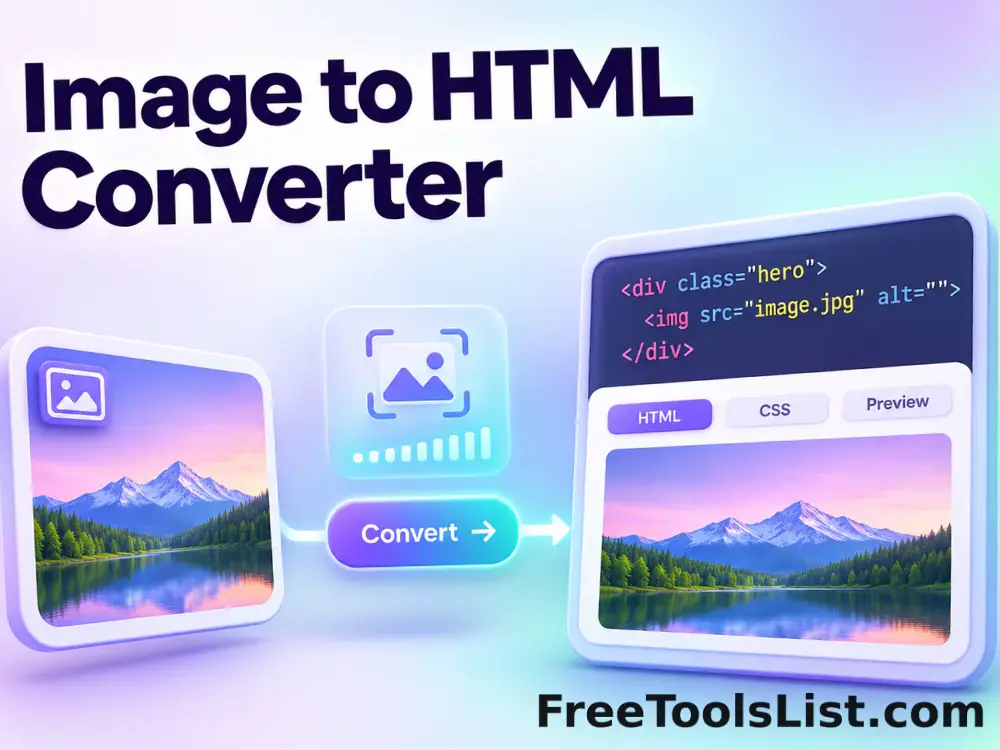
Convert an image into a portable HTML img element with an embedded Base64 data URI, accessible alt text, responsive sizing options and a live browser-style canvas preview.

● Local processing · Preview before saving · No account

Image to HTML Converter workspace

Adjust the focused controls, inspect the real canvas and save only the result you approve.

Canvas preview

Loading the image workspace…

Quick Tool Overview

Image to HTML with reviewable output.

Convert an image into a portable HTML img element with an embedded Base64 data URI, accessible alt text, responsive sizing options and a live browser-style canvas preview.

The browser reads the selected image as a data URI, builds an accessible img element from the chosen options and renders a visual page preview before creating the HTML file.

LIVECanvas preview
HTMLFocused controls
LOCALBrowser processing
0Accounts needed
Important. Base64 usually increases encoded data size by about one third. Use normal image files for large photographs or pages where caching and performance matter.
About the Tool

What Image to HTML Converter does.

Primary purpose

Use this workspace to embed a small image directly inside an HTML document without a separate image file or external URL.

How it works

The browser reads the selected image as a data URI, builds an accessible img element from the chosen options and renders a visual page preview before creating the HTML file.

Canvas-first review

The proposed result stays visible while controls change, so cropping, edges, text and colors can be checked before export.

Private workflow

Local files are decoded and processed in browser memory rather than uploaded to a remote image-processing queue.

Explicit saving

The tool does not save automatically. A file is created only after the Download or Export button is pressed.

Known limitation

Base64 usually increases encoded data size by about one third. Use normal image files for large photographs or pages where caching and performance matter.
Key Features

A modern, compact workflow built for inspection.

▣

Real canvas preview

See the actual generated pixels rather than an approximate mockup.

✓

Focused controls

Only settings relevant to this task are shown in a compact sidebar.

⌂

Local processing

Image transformations run in the current browser tab whenever the browser supports them.

↓

Reviewed exports

Save PNG, JPEG, WebP, text, encrypted files or ZIP output only after review.

How to Use Image to HTML Converter

Complete the task in six detailed steps.

Prepare the source

Upload the image that should be embedded and confirm the browser can decode its format.

Step 1: Keep the intended final use in mind during this step.

Set the main controls

Enter meaningful alt text, choose responsive or fixed sizing, select object-fit behavior and enable lazy loading when appropriate.

Step 2: Keep the intended final use in mind during this step.

Inspect the live canvas

Review the complete visible result, including edges, crop, text, colors, grid lines or marked areas before creating a file.

Step 3: Use the visible canvas to verify the result before continuing.

Refine the output

Make small adjustments and compare the preview again. Use Undo, Reset or Clear when the workspace offers those controls.

Step 4: Keep the intended final use in mind during this step.

Choose the export

Select the available PNG, JPEG, WebP, text, encrypted file or ZIP output that fits the intended workflow.

Step 5: Keep the intended final use in mind during this step.

Save only after review

Download the result only after confirming its dimensions, transparency, content and any privacy-sensitive details.

Step 6: Keep the intended final use in mind during this step.

Ready to create?

Preview the result before saving.

Use focused controls and explicit downloads without creating an account.

Open Image to HTML →

Frequently Asked Questions

Popular image to html questions.

No. Files are decoded, processed, previewed and exported in the current browser tab.

Yes. The main workspace uses a real canvas and updates it as the settings change.

A current desktop version of Chrome, Edge, Firefox or Safari is recommended. Some file formats and screen-capture features depend on browser support.

No. The tool works locally without registration, a subscription or a server-side processing queue.

Embedded data URIs are useful for small portable examples, signatures and offline snippets. Larger site images are usually better as separate optimized files.

Yes. Use Reset or choose another source file; nothing is saved automatically.

Keep exploring

Similar Tools

Continue with related free tools selected from this category and the wider directory.

20 tools
360° Bottom Pole Converter tool preview3BImages

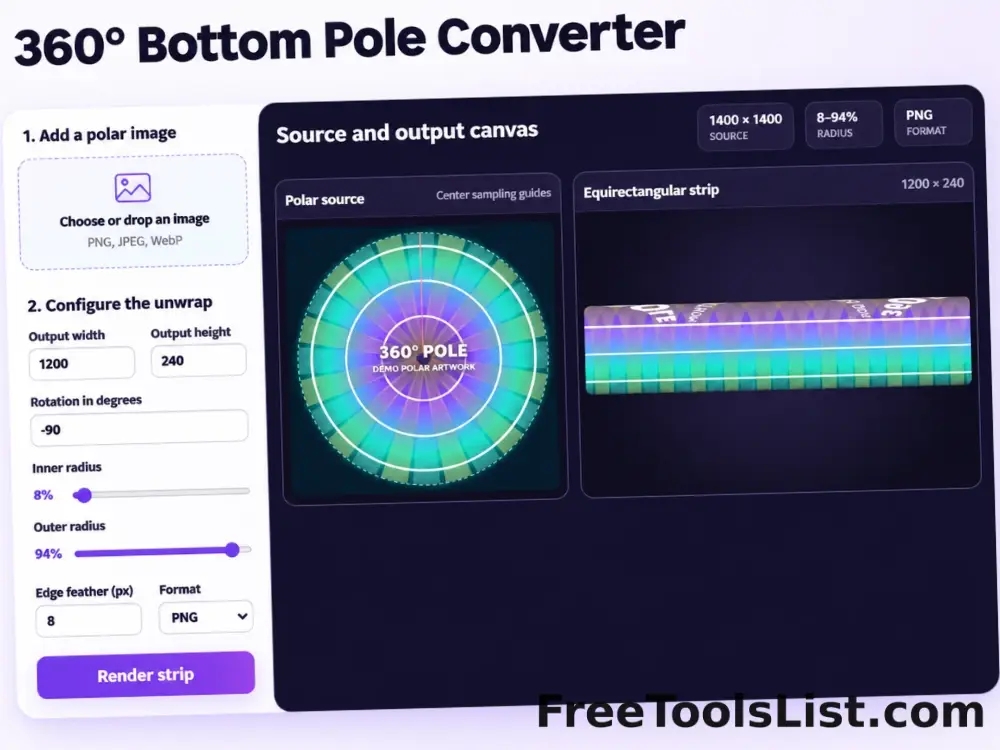
360° Bottom Pole Converter

Free online 360 bottom pole converter. Convert a circular polar image into a wide equirectangular bottom-pole strip for 360° panoramas, with radius, rotation, feathering, flip and export controls. Preview the polar-to-strip result locally before downloading.

Favicon Converter tool previewFCImages

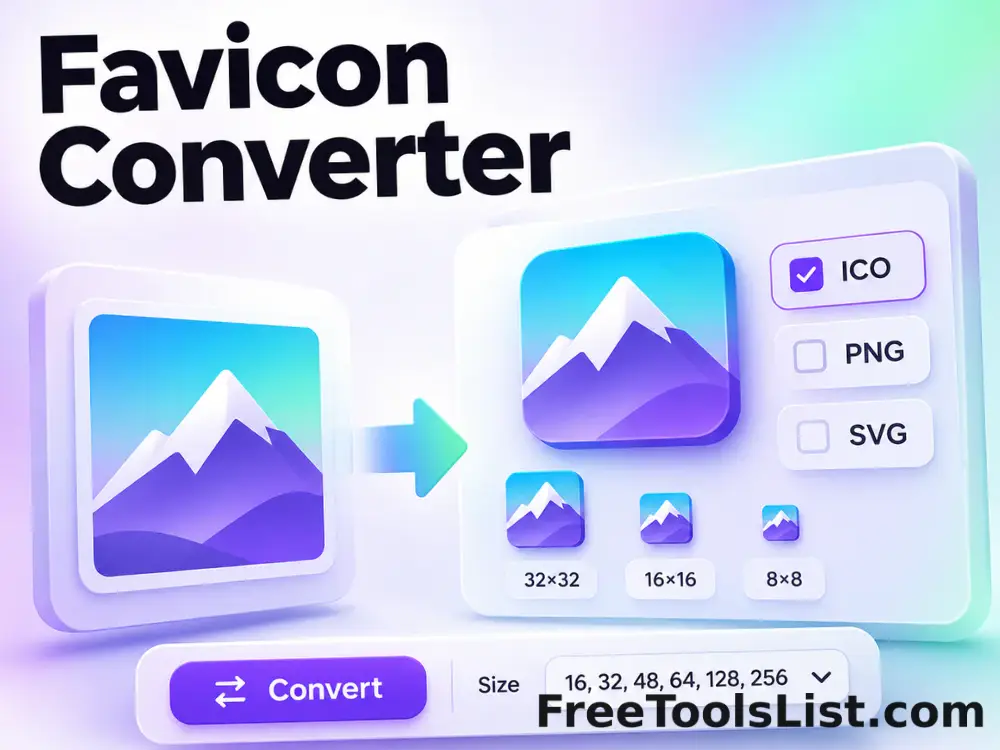
Favicon Converter

Convert a PNG, JPG, WebP, GIF or SVG image into a complete browser-ready favicon package with live square-fit controls, six canvas previews, a multi-size ICO and ZIP download.

Image DPI Checker & Converter tool previewIDImages

Image DPI Checker & Converter

Inspect pixel dimensions, file size and estimated print measurements, choose a new DPI value, preview the unchanged pixels and export a high-quality JPEG with print density metadata.

Lossless Progressive JPEG Converter tool previewLPImages

Lossless Progressive JPEG Converter

Convert a baseline JPEG to progressive scan order without recompressing image pixels using a bundled local jpegtran binary.

Pixel to Inches, CM, MM & Feet Converter tool previewPTImages

Pixel to Inches, CM, MM & Feet Converter

Convert image dimensions between pixels, inches, centimeters, millimeters and feet with a configurable PPI value, optional image measurement and a scaled print-size canvas diagram.

Stereo 3D to 2D Converter tool previewS3Images

Stereo 3D to 2D Converter

Convert red-cyan anaglyphs or side-by-side stereo pairs into a regular 2D image with cleanup controls.

Universal Batch Image Format Converter tool previewUBImages

Universal Batch Image Format Converter

Batch convert browser-decodable images and baseline TIFF files to AVIF, WebP, PNG or JPEG with quality, resizing, transparency, background color, AVIF effort, ZIP export and a live result canvas before saving.

Add Noise to Image tool previewANImages

Add Noise to Image

Add Noise to Image lets you add controllable monochrome or color grain locally in your browser, compare the result, and download a ready-to-use file.

Adjust Image Gamma tool previewAIImages

Adjust Image Gamma

Adjust Image Gamma lets you reshape midtone brightness without applying a flat offset locally in your browser, compare the result, and download a ready-to-use file.

Adjust Image HSL tool previewAIImages

Adjust Image HSL

Adjust Image HSL lets you control hue, saturation and lightness in one workspace locally in your browser, compare the result, and download a ready-to-use file.

Auto Contrast Image tool previewACImages

Auto Contrast Image

Automatically detect useful black and white points, expand image contrast and preview the corrected photograph on a live before-and-after canvas.

Auto Levels Image tool previewALImages

Auto Levels Image

Normalize photo brightness and color levels automatically using per-channel RGB or luminance-only correction with clipping and strength controls.

Automatic Gamma Corrector tool previewAGImages

Automatic Gamma Corrector

Measure image midtones and apply an automatic gamma curve with target, strength and fine-tuning controls before saving.

Blur Image tool previewBIImages

Blur Image

Blur Image lets you apply a configurable Gaussian-style browser blur locally in your browser, compare the result, and download a ready-to-use file.

Blurred Frame Image Generator tool previewBFImages

Blurred Frame Image Generator

Fit one image or a complete batch inside square canvases without cropping, using blurred, solid, transparent or gradient backgrounds, alignment controls, live preview and ZIP export.

Bulk Add Noise to Image tool previewBAImages

Bulk Add Noise to Image

Process multiple images locally to add controllable monochrome or color grain, review every result, and download the completed batch as a ZIP.

Bulk Adjust Image Gamma tool previewBAImages

Bulk Adjust Image Gamma

Process multiple images locally to reshape midtone brightness without applying a flat offset, review every result, and download the completed batch as a ZIP.

Bulk Adjust Image HSL tool previewBAImages

Bulk Adjust Image HSL

Process multiple images locally to control hue, saturation and lightness in one workspace, review every result, and download the completed batch as a ZIP.

Bulk Adjust Image Hue tool previewBAImages

Bulk Adjust Image Hue

Process multiple images locally to rotate every color around the HSL hue wheel, review every result, and download the completed batch as a ZIP.

Bulk Adjust RGB Channels tool previewBAImages

Bulk Adjust RGB Channels

Process multiple images locally to scale individual red, green and blue channels, review every result, and download the completed batch as a ZIP.

PublishedUpdated