Private local image workspace

Adjust Image Gamma

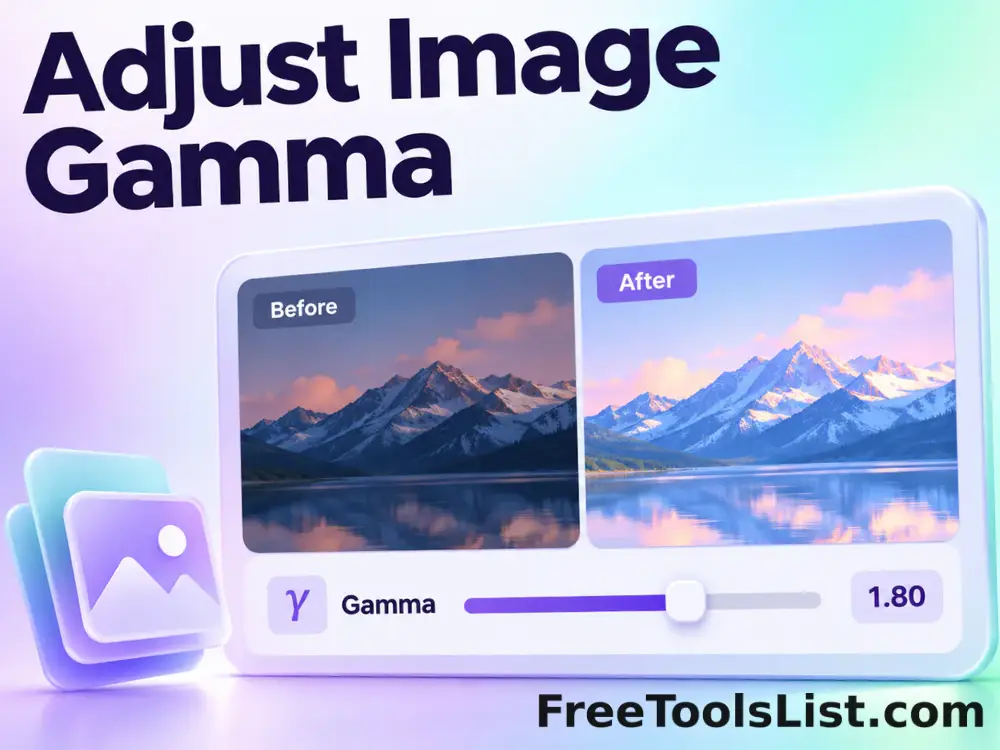
Adjust Image Gamma lets you reshape midtone brightness without applying a flat offset locally in your browser, compare the result, and download a ready-to-use file.

● Local processing · No uploads · No sign-up

Adjust Image Gamma workspace

Reshape midtone brightness without applying a flat offset with operation-specific controls.

Files stay in this tab
Choose a file to begin.

Quick Tool Overview

A focused workflow for adjust image gamma.

Adjust Image Gamma lets you reshape midtone brightness without applying a flat offset locally in your browser, compare the result, and download a ready-to-use file.

The workspace keeps the source, operation settings and results together so you can make deliberate changes, compare output dimensions and export without moving sensitive images through an external service.

LOCALBrowser processing
PNGDownloadable output
LIVEVisible results
0Accounts needed
Ready when you are

Process images without an upload queue.

Choose the source, review every setting and download only the version you want.

Open Adjust Image Gamma

About the Tool

What Adjust Image Gamma helps you do.

Purpose-built processing

This page is configured to reshape midtone brightness without applying a flat offset instead of hiding the task inside a generic editor.

Private by design

Images are decoded into a local canvas. The page does not send image pixels to FreeToolsList.com or a third-party image API.

Controlled output

Choose format and quality where supported, then review the rendered dimensions before downloading.

Visible comparison

The source remains available while the processed result is rendered below for a clear before-and-after check.

Transparent limitations

Very large images use browser memory, animated files become a single frame and lossy formats may introduce compression artifacts.

Practical handoff

Downloads use descriptive filenames so the result can move directly into a design, publishing or documentation workflow.

Key Features

A complete local image workflow.

IMG

Operation-specific controls

Only settings relevant to adjust image gamma are shown.

↙

Downloadable output

Export transparent PNG or choose JPEG and WebP quality for compatible results.

⌂

Local processing

Canvas operations run in the current tab without an image upload.

1:1

Result inspection

Review a processed image before saving it.

How to Use Adjust Image Gamma

Finish the image task in six clear steps.

Choose a source image

Choose an image from your device or drop it into the workspace.

Tip: Keep an untouched original for comparison.

Review the controls

Set the values shown for this operation. Dimensions and percentages are validated before processing.

Tip: Change one control at a time when judging a visual effect.

Process image

Run the operation. Processing time depends on pixel dimensions and the number of selected files.

Tip: Large photos can require more browser memory than their file size suggests.

Inspect the result

Check the preview, output dimensions and any operation notes before saving.

Tip: Zoom the downloaded file when edge quality matters.

Choose an output format

Use PNG for transparency, JPEG for photographs or WebP for modern web delivery.

Tip: JPEG cannot preserve transparent pixels.

Download the finished work

Download the result with a descriptive filename.

Tip: Reopen the saved file once to verify the final encoding.

Ready to process?

Adjust Image Gamma runs locally.

Keep control of the source file, settings and final download.

Process image →

Frequently Asked Questions

Popular adjust image gamma questions.

Yes. It works locally without an account, watermark, subscription or usage counter.

No. File decoding and image processing run in this browser tab. Screen capture uses the browser's built-in permission prompt.

PNG, JPEG, WebP and GIF images are supported by modern browsers. SVG tools also accept SVG files or markup. Animated images are processed as a single frame.

Yes. Single results can be exported as PNG, JPEG or WebP. Batch workflows package completed files in a ZIP.

Pixel edits require re-encoding. Use PNG for transparency or repeated editing, and JPEG/WebP when smaller photographic files matter.

Keep exploring

Similar Tools

Continue with related free tools selected from this category and the wider directory.

20 tools
Bulk Adjust Image Gamma tool previewBAImages

Bulk Adjust Image Gamma

Process multiple images locally to reshape midtone brightness without applying a flat offset, review every result, and download the completed batch as a ZIP.

Adjust Image HSL tool previewAIImages

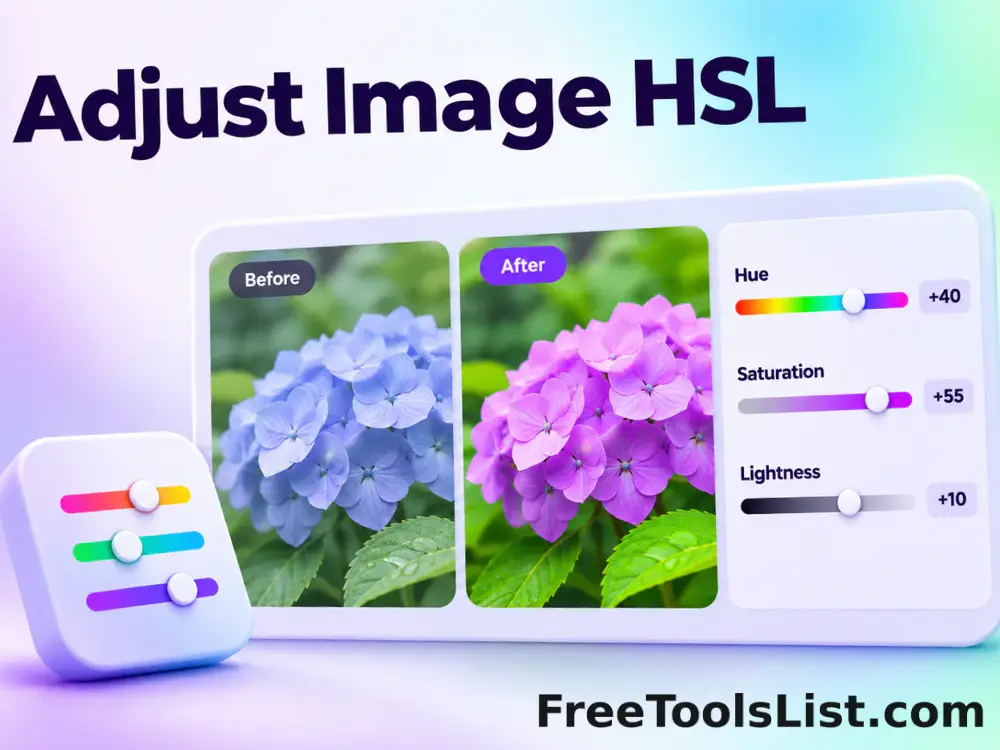
Adjust Image HSL

Adjust Image HSL lets you control hue, saturation and lightness in one workspace locally in your browser, compare the result, and download a ready-to-use file.

Automatic Gamma Corrector tool previewAGImages

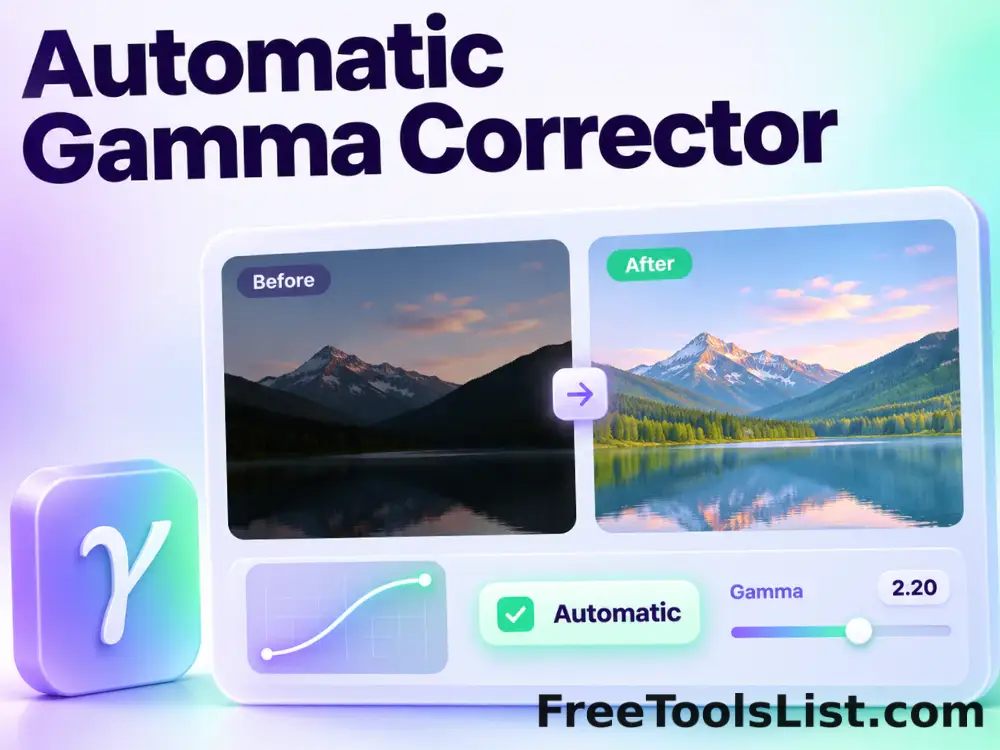
Automatic Gamma Corrector

Measure image midtones and apply an automatic gamma curve with target, strength and fine-tuning controls before saving.

Bulk Adjust Image HSL tool previewBAImages

Bulk Adjust Image HSL

Process multiple images locally to control hue, saturation and lightness in one workspace, review every result, and download the completed batch as a ZIP.

Bulk Adjust Image Hue tool previewBAImages

Bulk Adjust Image Hue

Process multiple images locally to rotate every color around the HSL hue wheel, review every result, and download the completed batch as a ZIP.

Bulk Adjust RGB Channels tool previewBAImages

Bulk Adjust RGB Channels

Process multiple images locally to scale individual red, green and blue channels, review every result, and download the completed batch as a ZIP.

Bulk Change Image Brightness tool previewBCImages

Bulk Change Image Brightness

Process multiple images locally to adjust image brightness from deep shadow to bright highlight, review every result, and download the completed batch as a ZIP.

Bulk Image Brightness & Contrast tool previewBIImages

Bulk Image Brightness & Contrast

Process multiple images locally to adjust brightness and contrast together in one pass, review every result, and download the completed batch as a ZIP.

Change Image Brightness tool previewCIImages

Change Image Brightness

Change Image Brightness lets you adjust image brightness from deep shadow to bright highlight locally in your browser, compare the result, and download a ready-to-use file.

Glitch Image Effect Generator tool previewGIImages

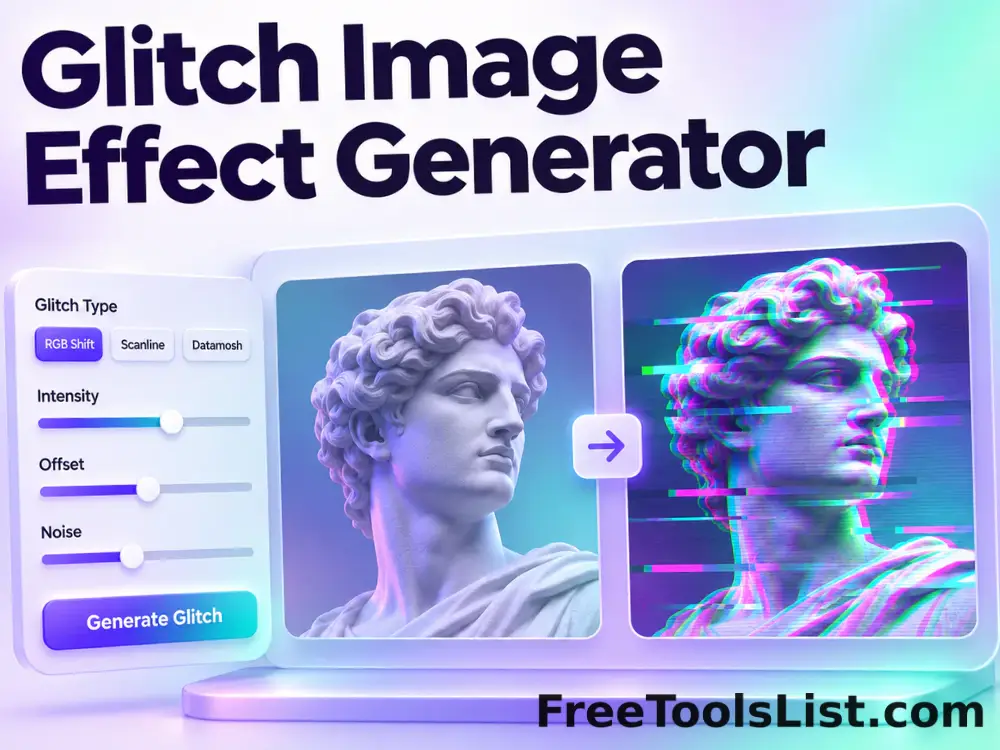
Glitch Image Effect Generator

Apply seeded RGB splits, scanlines, digital bands and noise with adjustable intensity, previewing a repeatable glitch canvas before saving.

Image Annotation & Signature Studio tool previewIAImages

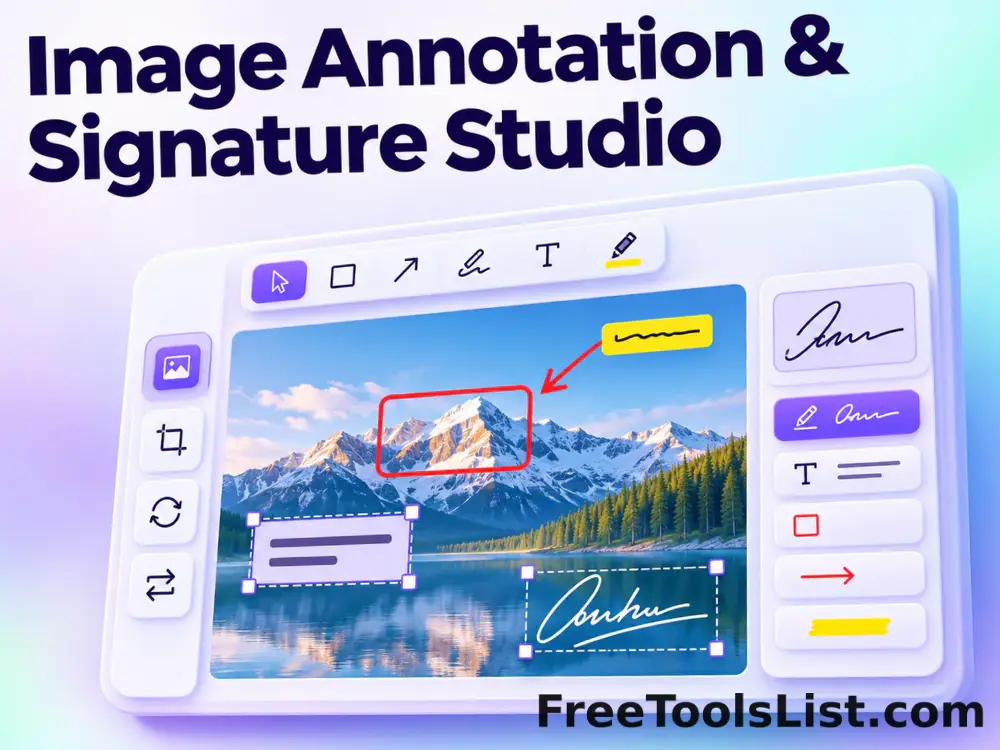
Image Annotation & Signature Studio

Draw, write or sign directly on an image with adjustable brush color, thickness, undo and clear controls, while reviewing every stroke on the canvas before saving.

Image Brightness & Contrast tool previewIBImages

Image Brightness & Contrast

Image Brightness & Contrast lets you adjust brightness and contrast together in one pass locally in your browser, compare the result, and download a ready-to-use file.

Image Color Quantizer tool previewICImages

Image Color Quantizer

Reduce an image to a controlled palette with balanced RGB quantization, optional ordered dithering, adjustable dither strength and an exact output preview.

Image Difference Finder tool previewIDImages

Image Difference Finder

Compare two images pixel by pixel and highlight changed areas with adjustable threshold, background and opacity.

Image to SVG Vectorizer tool previewITImages

Image to SVG Vectorizer

Trace a raster image into a local color-quantized SVG made from merged horizontal vector runs, adjust color count and detail, and preview the vector result before downloading or copying it.

Shaky Image Effect tool previewSIImages

Shaky Image Effect

Create a controlled jitter and RGB displacement effect with adjustable strength, seed and scanline detail, previewing the full canvas before export.

Stereoscopic 3D Maker tool previewS3Images

Stereoscopic 3D Maker

Create red-cyan anaglyph or side-by-side stereoscopic images from one photo with adjustable depth and distance.

Targeted Color Replacement Studio tool previewTCImages

Targeted Color Replacement Studio

Replace a selected image color with another hue using adjustable matching intensity, transition smoothing, color gain and optional source-lightness preservation.

360° Bottom Pole Converter tool preview3BImages

360° Bottom Pole Converter

Free online 360 bottom pole converter. Convert a circular polar image into a wide equirectangular bottom-pole strip for 360° panoramas, with radius, rotation, feathering, flip and export controls. Preview the polar-to-strip result locally before downloading.

Add Noise to Image tool previewANImages

Add Noise to Image

Add Noise to Image lets you add controllable monochrome or color grain locally in your browser, compare the result, and download a ready-to-use file.

PublishedUpdated